- Admiration
- Wonder
- Inspiration
- Serenity
- Fascination
- Joy
- Tenderness
- Nostalgia
- Relief
- Sadness
- Anxiety
- Anger
- Embarrassment
- Fear
- Surprise
- Confusion
- Disgust
- Ambivalence
- The Sublime
- Disturbance
- Dreaminess
Development
Database
Me : please explain how to set up a database in a plesk server to store image-names and the list of emotions that you suggested above with the numbers that a specific emotion has been attributed to an image by anonymous viewers.
ChatGPT-4o : To set up a database on a Plesk server to store image names and track how many times each emotion has been attributed to a specific image by anonymous viewers, follow these steps:
✅ Step 1: Access Plesk and Create the Database
- Log into your Plesk panel.
- Go to Databases from the left-hand menu (or via the domain’s dashboard).
- Click “Add Database”.
- Database name: e.g.,
image_emotions_db - Related site: Choose your domain
- Database user: Create a username and password (save these)
- Database name: e.g.,
- Click OK to create the database.
✅ Step 2: Design the Database Structure
You’ll need two main tables:
1. images
Stores the list of images.
| Field Name | Type | Description |
|---|---|---|
| id | INT (PK) | Auto-increment ID |
| image_name | VARCHAR(255) | Name or path of the image |
✅ Step 3: Create the Tables
Use phpMyAdmin via Plesk or run SQL manually.
SQL Script Example:
CREATE TABLE images (
    id INT AUTO_INCREMENT PRIMARY KEY,
    image_name VARCHAR(255) NOT NULL
);

CREATE TABLE emotion_counts (
    id INT AUTO_INCREMENT PRIMARY KEY,
    image_id INT NOT NULL,
    emotion VARCHAR(50) NOT NULL,
    count INT DEFAULT 0,
    FOREIGN KEY (image_id) REFERENCES images(id)
);
✅ Step 4: Insert Emotion Options
Insert a row for each image and each emotion with count = 0.
Example (for one image):
INSERT INTO images (image_name) VALUES ('sunset_001.jpg');
SET @img_id = LAST_INSERT_ID();

INSERT INTO emotion_counts (image_id, emotion)
VALUES
(@img_id, 'Joy'),
(@img_id, 'Sadness'),
(@img_id, 'Inspiration'),
(@img_id, 'Fear'),
(@img_id, 'Nostalgia'),
(@img_id, 'Wonder'),
(@img_id, 'Confusion'),
(@img_id, 'Disgust'),
(@img_id, 'Serenity'),
(@img_id, 'Fascination');
✅ Step 5: Frontend Integration (Optional)
Create a simple form or buttons on your website for each image, allowing users to select how they feel about the image. Each click would:
- Send an AJAX or POST request.
- Update the
emotion_counts.countfield for the selected emotion and image.
✅ Step 6: Track and Display Data
You can use SQL queries to show results like:
SELECT emotion, count FROM emotion_counts
WHERE image_id = 1
ORDER BY count DESC;
This will show which emotions were most attributed to a given image.
WordPress REST API
POST
To fetch a WordPress post with the REST API the following URL is used :
https://admin.ki-leierbud.lu/wp-json/wp/v2/posts/xxx (xxx = post ID)
Example :
https://admin.ki-leierbud.lu/wp-json/wp/v2/posts/410
CATEGORY
To fetch a WordPress category post with the REST API the following URL is used :
https://admin.ki-leierbud.lu/wp-json/wp/v2/categories/yyy (yyy = category ID)
Example :
https://admin.ki-leierbud.lu/wp-json/wp/v2/categories/91
List of 100 categories
To fetch the first 100 categories from a WordPress web site :
https://admin.ki-leierbud.lu/wp-json/wp/v2/categories?per_page=100
[{"id":77,"count":0,"description":"","link":"https:\/\/admin.ki-leierbud.lu\/de\/archives\/category\/wissen\/ausbildung","name":"Ausbildung","slug":"ausbildung","taxonomy":"category","parent":29,"meta":[],"_links":{"self":[{"href":"https:\/\/admin.ki-leierbud.lu\/wp-json\/wp\/v2\/categories\/77","targetHints":{"allow":["GET"]}}],"collection":[{"href":"https:\/\/admin.ki-leierbud.lu\/wp-json\/wp\/v2\/categories"}],"about":[{"href":"https:\/\/admin.ki-leierbud.lu\/wp-json\/wp\/v2\/taxonomies\/category"}],"up":[{"embeddable":true,"href":"https:\/\/admin.ki-leierbud.lu\/wp-json\/wp\/v2\/categories\/29"}],"wp:post_type":[{"href":"https:\/\/admin.ki-leierbud.lu\/wp-json\/wp\/v2\/posts?categories=77"}],"curies":[{"name":"wp","href":"https:\/\/api.w.org\/{rel}","templated":true}]}},

{"id":212,"count":2,"description":"","link":"https:\/\/admin.ki-leierbud.lu\/de\/archives\/category\/wissen\/fragen\/ausbildung-ki","name":"Ausbildung KI","slug":"ausbildung-ki","taxonomy":"category","parent":35,"meta":[],"_links":{"self":[{"href":"https:\/\/admin.ki-leierbud.lu\/wp-json\/wp\/v2\/categories\/212","targetHints":{"allow":["GET"]}}],"collection":[{"href":"https:\/\/admin.ki-leierbud.lu\/wp-json\/wp\/v2\/categories"}],"about":[{"href":"https:\/\/admin.ki-leierbud.lu\/wp-json\/wp\/v2\/taxonomies\/category"}],"up":[{"embeddable":true,"href":"https:\/\/admin.ki-leierbud.lu\/wp-json\/wp\/v2\/categories\/35"}],"wp:post_type":[{"href":"https:\/\/admin.ki-leierbud.lu\/wp-json\/wp\/v2\/posts?categories=212"}],"curies":[{"name":"wp","href":"https:\/\/api.w.org\/{rel}","templated":true}]}},

{"id":33,"count":0,"description":"","link":"https:\/\/admin.ki-leierbud.lu\/pt\/archives\/category\/conhecimento","name":"Conhecimento","slug":"conhecimento","taxonomy":"category","parent":0,"meta":[],"_links":{"self":[{"href":"https:\/\/admin.ki-leierbud.lu\/wp-json\/wp\/v2\/categories\/33","targetHints":{"allow":["GET"]}}],"collection":[{"href":"https:\/\/admin.ki-leierbud.lu\/wp-json\/wp\/v2\/categories"}],"about":[{"href":"https:\/\/admin.ki-leierbud.lu\/wp-json\/wp\/v2\/taxonomies\/category"}],"wp:post_type":[{"href":"https:\/\/admin.ki-leierbud.lu\/wp-json\/wp\/v2\/posts?categories=33"}],"curies":[{"name":"wp","href":"https:\/\/api.w.org\/{rel}","templated":true}]}},

{"id":27,"count":0,"description":"","link":"https:\/\/admin.ki-leierbud.lu\/fr\/archives\/category\/connaissances","name":"Connaissances","slug":"connaissances","taxonomy":"category","parent":0,"meta":[],"_links":{"self":[{"href":"https:\/\/admin.ki-leierbud.lu\/wp-json\/wp\/v2\/categories\/27","targetHints":{"allow":["GET"]}}],"collection":[{"href":"https:\/\/admin.ki-leierbud.lu\/wp-json\/wp\/v2\/categories"}],"about":[{"href":"https:\/\/admin.ki-leierbud.lu\/wp-json\/wp\/v2\/taxonomies\/category"}],"wp:post_type":[{"href":"https:\/\/admin.ki-leierbud.lu\/wp-json\/wp\/v2\/posts?categories=27"}],"curies":[{"name":"wp","href":"https:\/\/api.w.org\/{rel}","templated":true}]}},
Here is the list of the four first categories returned in the JSON file with their parent categories :
- 77 >>> 29
- 212 >>> 35
- 33 >>> 0
- 27 >>> 0
A “0” means that the category has no parent.
Here is a list with the returned categories to view the details provided :
- https://admin.ki-leierbud.lu/wp-json/wp/v2/categories/77
- https://admin.ki-leierbud.lu/wp-json/wp/v2/categories/212
- https://admin.ki-leierbud.lu/wp-json/wp/v2/categories/33
- https://admin.ki-leierbud.lu/wp-json/wp/v2/categories/27
- https://admin.ki-leierbud.lu/wp-json/wp/v2/categories/29
- https://admin.ki-leierbud.lu/wp-json/wp/v2/categories/35
CATEGORY from POST
To extract a category from a post JSON file :
...... {"footnotes":""},"categories":[93],"tags":[201],"class_list":["post-410","post","type-post","status-publish","format-standard","hentry","category-image-style-easy-en-en","tag-simpson"],"translations":{"en":410},"_links":.....Parent, Grand-parent and top CATEGORIES
To find the parent, grand-parent or top level categories from a post JSON file , we must proceed iteratively:
- fetch the POST JSON file and extract first category ID
- fetch the first CATEGORY JSON file and extract the parent category ID
- if the parent category is not 0, continue to fetch the PARENT CATEGORY JSON file and extract the grand-parent category ID
- if the grand-parent category is not 0, continue to fetch the GRAND-PARENT CATEGORY JSON file and extract the next level category ID
Hosting
KI-Léierbud.lu Homepage
in root folder /httpdocs/index.html
<!DOCTYPE html>
<html lang="en">
<head>
<meta charset="UTF-8" />
<meta name="viewport" content="width=device-width, initial-scale=1, viewport-fit=cover" />
<meta name="apple-mobile-web-app-capable" content="yes" />
<meta name="theme-color" content="#fff7e6" />
<title>KI-Léierbud</title>
<style>
html, body {
margin: 0;
padding: 0;
height: 100%;
background-color: #fff7e6;
font-family: 'Segoe UI', Tahoma, Geneva, Verdana, sans-serif;
color: #333;
line-height: 1.6;
overflow-x: hidden;
-webkit-overflow-scrolling: touch;
}
body {
padding-top: env(safe-area-inset-top);
padding-right: env(safe-area-inset-right);
padding-bottom: env(safe-area-inset-bottom);
padding-left: env(safe-area-inset-left);
}
main {
max-width: 768px;
margin: 0 auto;
padding: 1em;
}
h1 {
font-size: 2.8em;
text-align: center;
margin-top: 1em;
color: #b30000;
}
.indented-lines p {
margin: 0.3em 0;
color: #444;
}
.indent-0 { padding-left: 0; }
.indent-1 { padding-left: 1em; }
.indent-2 { padding-left: 2em; }
.indent-3 { padding-left: 3em; }
.indent-4 { padding-left: 4em; }
.timeline {
text-align: center;
font-weight: bold;
font-size: 1.1em;
margin: 1.5em 0 0.5em;
color: #5a2d0c;
}
img {
display: block;
width: 100%;
height: auto;
margin: 1em 0;
box-shadow: 0 4px 10px rgba(0,0,0,0.1);
border-radius: 10px;
}
.language-links {
margin-top: 2em;
}
.language-links p {
margin: 0.3em 0;
}
</style>
</head>
<body>
<main>
<div class="indented-lines">
<p class="indent-0"><a href="https://admin.ki-leierbud.lu">Welcome to the portal of</a> …</p>
<p class="indent-1"><a href="https://admin.ki-leierbud.lu/">Bienvenue sur le portail de</a> …</p>
<p class="indent-2"><a href="https://admin.ki-leierbud.lu">Willkommen auf dem Portal der</a> …</p>
<p class="indent-3"><a href="https://admin.ki-leierbud.lu">Bem-vindos ao portail de</a> …</p>
<p class="indent-4"><a href="https://admin.ki-leierbud.lu/">Wëllkomm um Portal vun der</a> …</p>
</div>
<h1>KI-Léierbud</h1>
<div class="timeline"><<< 14 .000 .000 .000 <a href="https://admin.ki-leierbud.lu/archives/99">years</a> - <a href="https://admin.ki-leierbud.lu/archives/108">années</a> – <a href="https://admin.ki-leierbud.lu/archives/102">Jahre</a> – <a href="https://admin.ki-leierbud.lu/archives/106">anos</a> - <a href="https://admin.ki-leierbud.lu/archives/104">Joer</a></div>
<img src="images/14billions.jpg" alt="14 Billion Years" />
<div class="timeline"><<< 14.000.000 années – Jahre – years – Joer – anos</div>
<img src="images/14millions.jpg" alt="14 Million Years" />
<div class="timeline"><<< 14.000 années – Jahre – years – Joer – anos</div>
<img src="images/14thousand.jpg" alt="14 Thousand Years" />
<div class="timeline"><<< 14 années – Jahre – years – Joer – anos</div>
<img src="images/14years.jpg" alt="14 Years" />
<div class="timeline">2023 : AI Tsunami (en) – Tsunami IA (fr, pt) – KI Tsunami (de, lb)</div>
<img src="images/tsunami.jpg" alt="AI Tsunami" />
<div class="timeline">aujourd’hui – heute – today – haut – hoje >>> KI-Léierbud</div>
<img src="images/ki-leierbud.jpg" alt="KI-Léierbud Today" />
<div class="language-links indented-lines">
<p class="indent-0">Start your exploration of the KI-Léierbud in English </p>
<p class="indent-1">Commencez votre exploration de la KI-Léierbud en français </p>
<p class="indent-2">Beginnen Sie Ihre Erkundung der KI-Léierbud auf Deutsch </p>
<p class="indent-3">Comece a sua exploração da KI-Léierbud em português </p>
<p class="indent-4">Start Är Entdeckung vun der KI-Léierbud op Lëtzebuergesch </p>
</div>
</main>
</body>
</html>File .htaccess
in root folder /ki-leierbud.lu/httpdocs/.htaccess
# BEGIN WordPress
# The directives (lines) between "BEGIN WordPress" and "END WordPress" are
# dynamically generated, and should only be modified via WordPress filters.
# Any changes to the directives between these markers will be overwritten.
<IfModule mod_rewrite.c>
RewriteEngine On
RewriteRule .* - [E=HTTP_AUTHORIZATION:%{HTTP:Authorization}]
RewriteBase /
RewriteRule ^index\.php$ - [L]
RewriteCond %{REQUEST_FILENAME} !-f
RewriteCond %{REQUEST_FILENAME} !-d
RewriteRule . /index.php [L]
</IfModule>

# END WordPressProgramming Tools
- HTML
- Java
- Javascript
- NodeJS
- Processing
- Python
Lux-ASR: Speech to Text System
The University of Luxembourg provides and Automatic Speech Recognition System (ASR) for Luxembourgish and several other languages (english, french, german, portuguese and spanish). Four output formats are available : plain text (txt), SubRip Subtitles (srt), JSON (with or without time codes for words) and Praat TextGrid. As an experimental feature for the Luxembourgish text translation to other languages has been added, which will output the recognized text in English, French, German, Portuguese, and Spanish.
The speech to transcribe can be recorded from a microphone or uploaded as Audio or Video file. If the recording contains more than one speaker, setting diarization to “On” will separate the text of every speaker in the recording along with time codes for their turns.
API Access
Lux-ASR can also be accessed by API and can be reached via:
curl -X POST "https://luxasr.uni.lu/v2/asr?diarization=Enabled&outfmt=text" \
  -H "accept: application/json" \
  -F "audio_file=@PATH/TO/AUDIO FILE;type=audio/wav"
The API returns the transcription in the specified output format.
Query Parameters
- diarization: Can be set to
Enabled(default) orDisabledto include or exclude speaker diarization. - outfmt: Specifies the output format. Supported values are:
text– plain text transcript (default)json– detailed JSON outputsrt– SubRip subtitle formattextgrid– Praat TextGrid format
Accepted audio formats are .wav, .mp3, and .m4a.
Python Script
Below is a basic Python script that replicates the functionality of the curl command with added flexibility. You can specify the audio file and optionally choose whether to enable diarization and which output format to use.
import requests
import argparse
import os
import sys

def main():
    parser = argparse.ArgumentParser(
        description="Send an audio file to the LuxASR API for transcription."
    )
    parser.add_argument(
        "audio_file",
        type=str,
        help="Path to the audio file (.wav, .mp3, .m4a)"
    )
    parser.add_argument(
        "--diarization",
        choices=["Enabled", "Disabled"],
        default="Enabled",
        help="Enable or disable speaker diarization (default: Enabled)"
    )
    parser.add_argument(
        "--outfmt",
        choices=["text", "json", "srt", "textgrid"],
        default="text",
        help="Output format: text, json, srt, or textgrid (default: text)"
    )

    args = parser.parse_args()

    if not os.path.isfile(args.audio_file):
        print(f"Error: File '{args.audio_file}' not found.")
        sys.exit(1)

    url = f"https://luxasr.uni.lu/v2/asr?diarization={args.diarization}&outfmt={args.outfmt}"
    headers = {
        "accept": "application/json"
    }

    # Determine MIME type
    ext = args.audio_file.lower()
    if ext.endswith(".wav"):
        mime_type = "audio/wav"
    elif ext.endswith(".mp3"):
        mime_type = "audio/mpeg"
    elif ext.endswith(".m4a"):
        mime_type = "audio/mp4"
    else:
        mime_type = "application/octet-stream"

    with open(args.audio_file, "rb") as audio:
        files = {
            "audio_file": (os.path.basename(args.audio_file), audio, mime_type)
        }
        response = requests.post(url, headers=headers, files=files)

    print(response.text)

if __name__ == "__main__":
    main()
Usage
python luxasr_transcribe.py path/to/your_audio.wav --diarization Enabled --outfmt json
Replace path/to/your_audio.wav with your actual audio file. The --diarization and --outfmt options are optional and default to Enabled and text respectively.
Lux-ASR is under constant development by Peter Gilles, Nina Hosseini-Kivanani, and Léopold Hillah at the University of Luxembourg and is supported by the Chambre des Députes du Grand-Duché de Luxembourg.
Disclaimer
Note that the transcription and the translation are run on a dedicated server at the University of Luxembourg. All data thus stays within Luxembourg and the University’s network. Nobody has access to the uploaded audio or the text output. The audio data is streamed to this server and no files are stored on this server or in the network. No data is used to further train the model and no data is transferred to third parties.
Domain Names
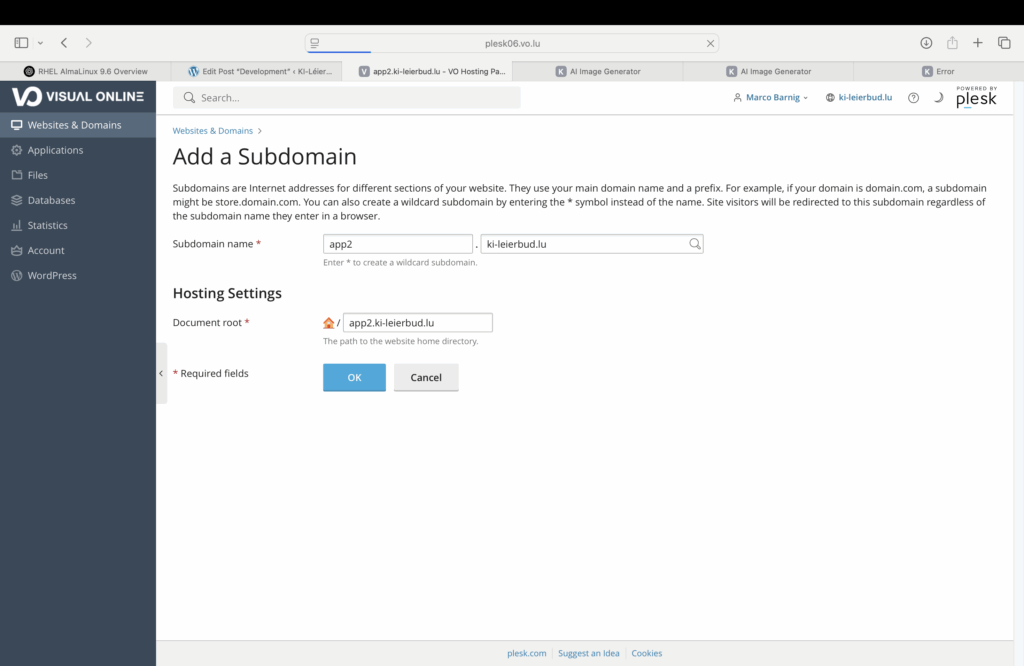
The main domain-name for the KI-Léierbud is ki-leierbud.lu with the following sub-domains :
- admin (homepage WordPress)
- app1 (NodeJS Application)
- app2 (NodeJS Application)
The following screenshot shows the configuration of a subdomain in the Plesk Dashboard :
The following sub-domains will be added if required :
- app3, app4, app5, … (NodeJS applications)
- python1, python2, python3, … (Python applications)
- gradio1, gradio2, gradio3, … (Gradio applications)
- …..
IP – Adresses
KI-Léierbud Server :
- v4 : 85.93.210.152
- v6 : 2001:1610:0:9::152
DNS-Server : Visual Online
Visual Online DNS resolver servers:
- Resolver 1 IPv4: 80.90.44.25
- Resolver 1 IPv6: 2001:1610:0:3::25
- Resolver 2 IPv4: 85.93.210.60
- Resolver 2 IPv6: 2001:1610:0:13::60
URL Shortener : TinyURL
quiz ? : https://tinyurl.com/3hy6aax4
Plesk SSH-Terminal
AlmaLinux 9.6
AlmaLinux 9.6, codenamed “Sage Margay,” was released on May 20, 2025. As a downstream rebuild of RHEL 9.6, it offers full binary compatibility while also introducing unique enhancements:AlmaLinux OS+4Facebook+4wiki.almalinux.org+4
- Kernel Version: Ships with Linux kernel 5.14.0-570.12.1.el9_6.wiki.almalinux.org+2wiki.almalinux.org+2Wikipedia+2
- Extended Hardware Support: Includes a tech-preview of KVM virtualization support for the IBM Power architecture, addressing the needs of specific user groups. wiki.almalinux.org
- Updated Development Tools: Features updated versions of development tools and module streams, such as Apache HTTP Server 2.4.62, Node.js 22, Nginx 1.26, PHP 8.3, MySQL 8.4, and Maven 3.9. AlmaLinux OS+2Linuxiac+2AlmaLinux OS+2
- System Toolchain Upgrades: Incorporates GCC 11.5, LLVM-Toolset 19.1.7, Go-Toolset 1.23.6, and Rust-Toolset 1.84.1, enhancing performance and compatibility.
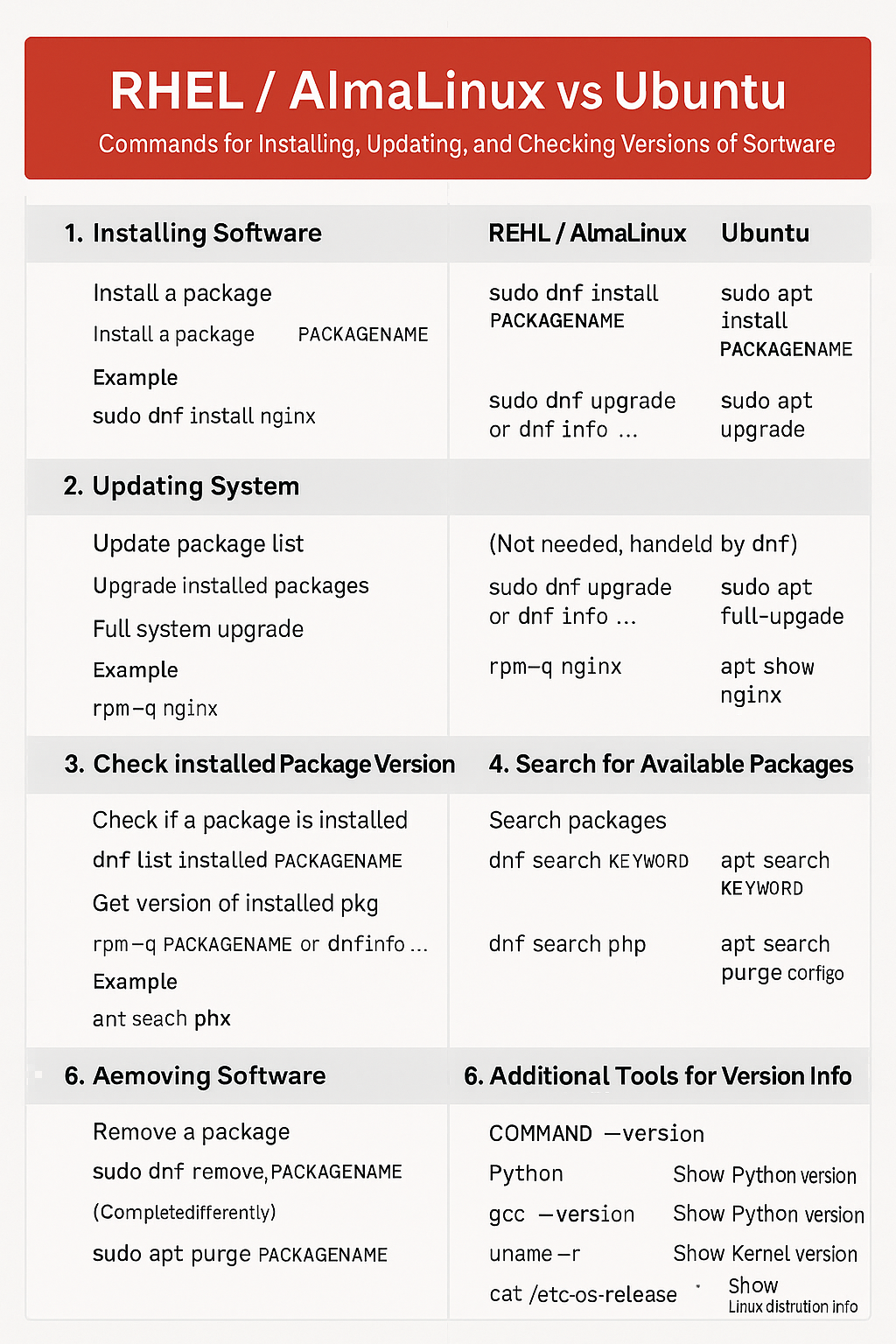
Some AlmaLinux commands are different from Ubuntu which I use on my desktop computers. I asked ChatGPT to generate a cheat sheet comparing commands between the two systems.
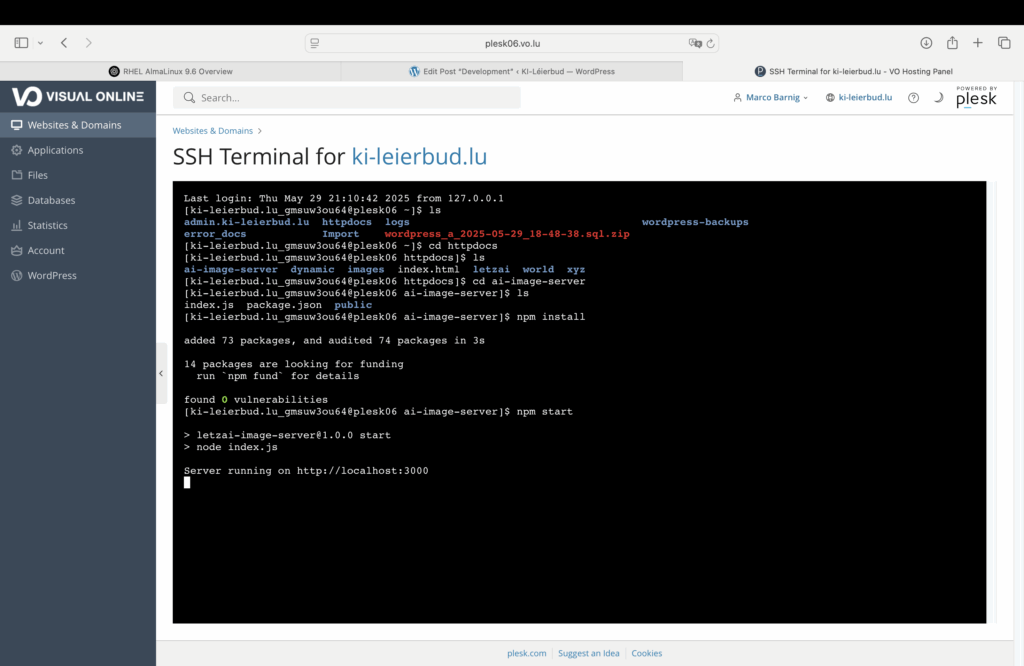
Here is a screenshot of the entries in the Plesk SSH Terminal to install a node app :
Plesk Hosting
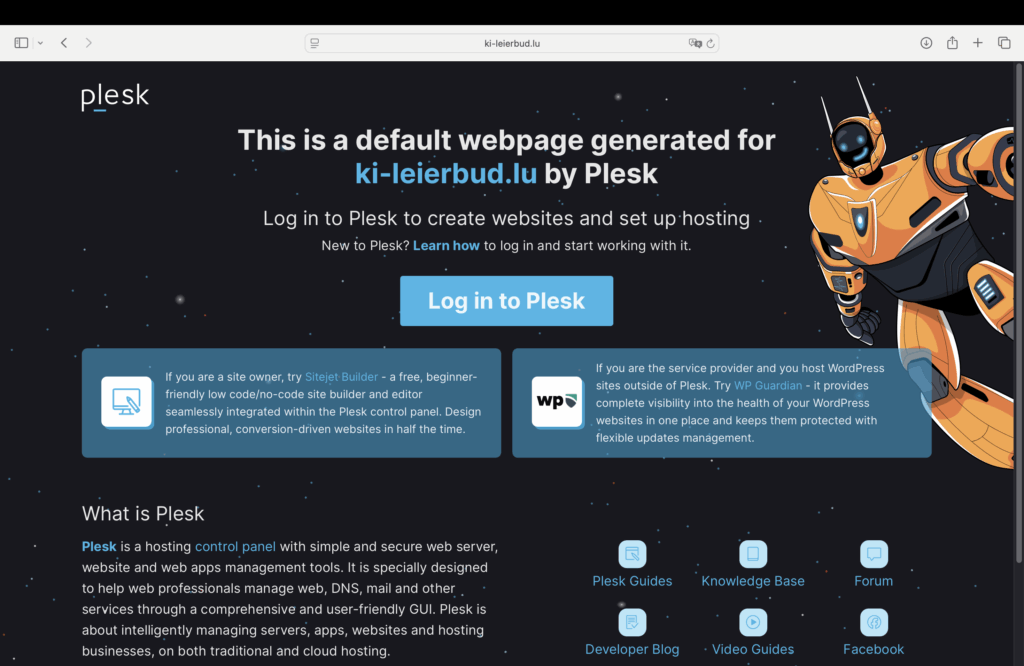
This was the default home-page of ki-leierbud.lu in the new Almalinux 9.6 Server hosted by Visual Online.
Here are the related
- DNS settings – v4: 85.93.210.152 / v6: 2001:1610:0:9::152
- Frontend : www.ki-leierbud.lu / ki-leierbud.lu >>> /var/www/vhosts/ki-leierbud.lu
- WordPress : admin.ki-leierbud.lu >>> /var/www/vhosts/ki-leierbud.lu/admin.ki-leierbud.lu
- Plesk Panel : https://plesk06.vo.lu:8443/ >>> login : username – password
- FTP Server : plesk06.vo.lu >>> Filezilla :
- Plesk Version :
- WordPress Version : 6.8.1
- PHP version : 8.3.21
To replace the default home-page by a custom webpage I used the recommended website builder Sitejet :
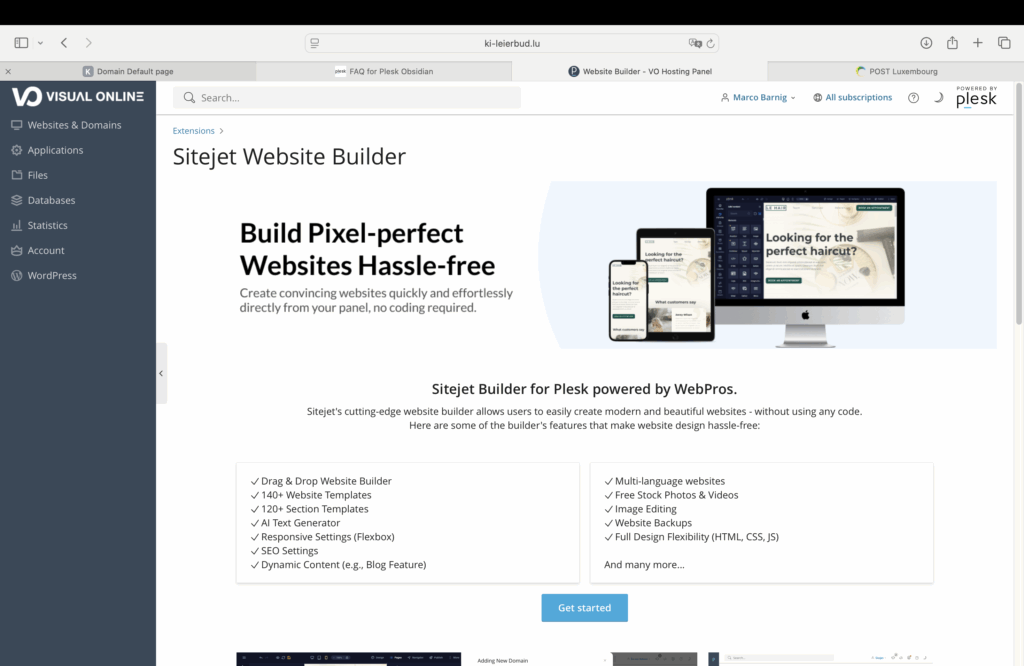
I selected the Academix theme template to start with a first trial :
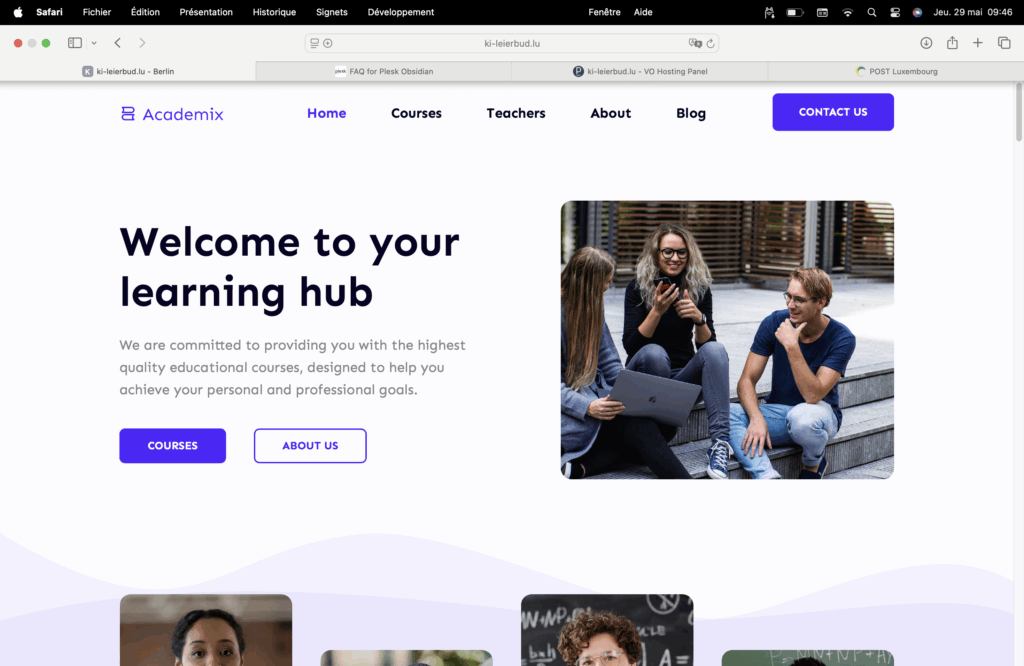
First Attempt – Upload Fails Due to File Size
The initial attempt to upload the image above failed because the file size exceeded 2 MB.
The PHP settings in Plesk were already configured to allow up to 64 MB, but WordPress still enforced a 2 MB upload limit.
ChatGPT pointed out that in such cases, a .user.ini file is required in the root directory of the WordPress installation to override the default behavior — especially when PHP is running in FPM (FastCGI Process Manager) mode, which is common in Plesk environments.
Using the “+” button in the File Manager, I created a new .user.ini file and added the following content:
upload_max_filesize = 64M
post_max_size = 64M
max_execution_time = 300
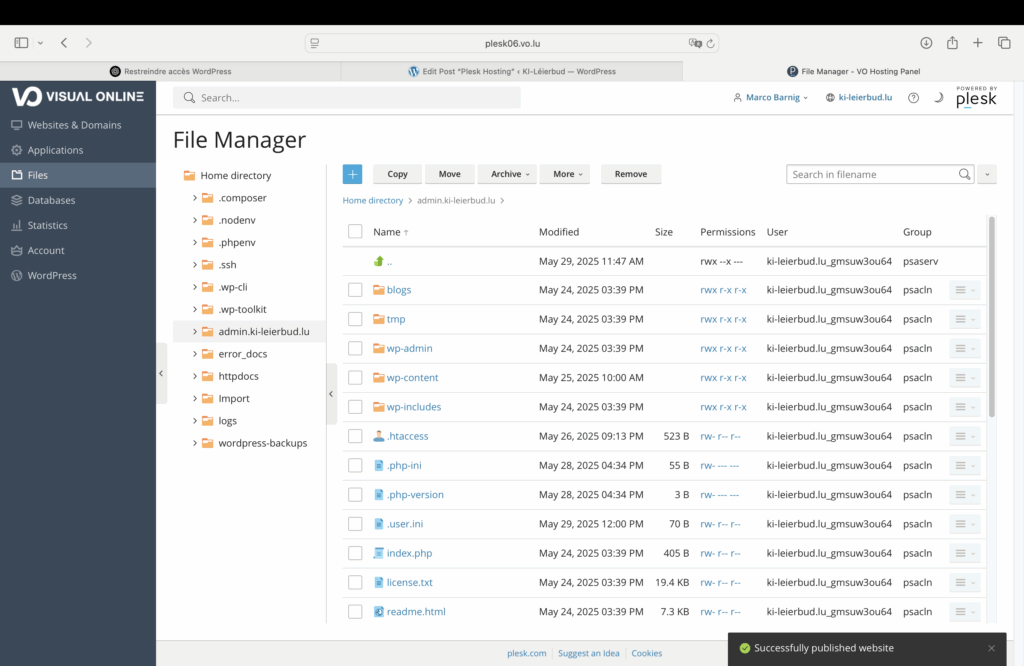
Customized Home Page
To install a customized minimal web Homepage allowing to test the correct working of the WordPress REST API, I removed all the files in the “home directory > httpdocs” folder, except the index.html file. I replaced the content of this file with the following code :
<!DOCTYPE html>
<html lang="en">
<head>
  <meta charset="UTF-8" />
  <meta name="viewport" content="width=device-width, initial-scale=1.0" />
  <title>KI-Léierbud</title>
  <style>
    body {
      font-family: sans-serif;
      padding: 40px;
      background-color: #fdfdfd;
      line-height: 1.6;
    }

    h1, h2, p {
      margin-bottom: 1em;
    }

    a {
      color: #0055cc;
      text-decoration: none;
    }

    a:hover {
      text-decoration: underline;
    }
  </style>
</head>
<body>
  <h1>Welcome to My New Site KI-Léierbud!</h1>
  <h2>Test the WordPress REST API</h2>
  <p><a href="https://admin.ki-leierbud.lu/archives/244">Table of Content</a></p>
</body>
</html>
Here is the result :
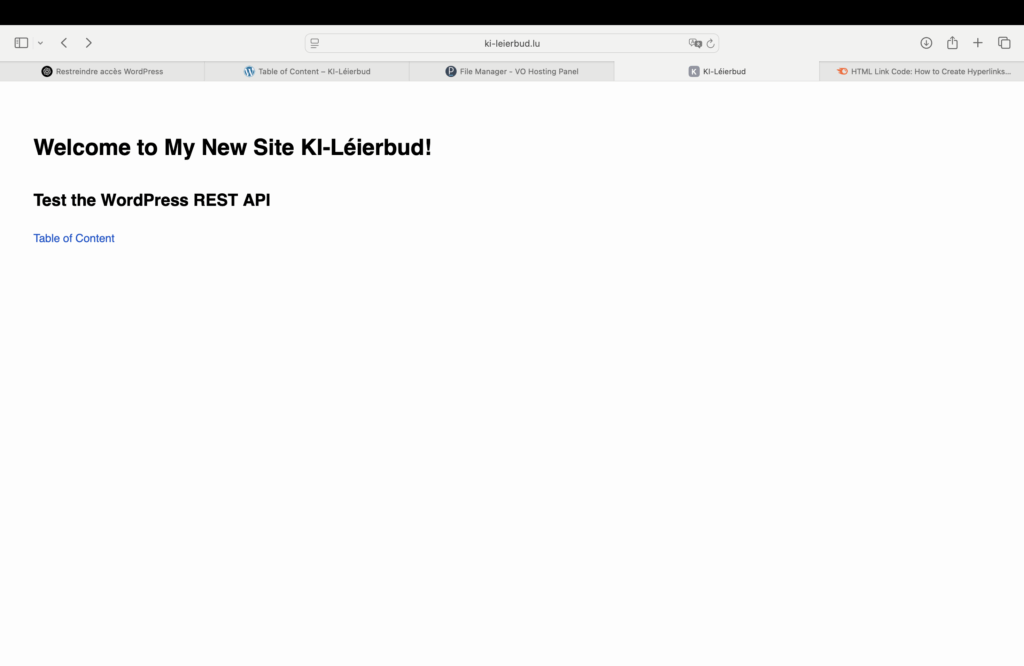
The WordPress REST API is working as expected. Now it’s time to create a well designed Home-Page.
Hosting User Guides
Meetings
- 7.3.2025 (10h00) : KI-Léierbud preparation meeting (at VO)
- 23.5.2025 (10h00) : First KI-Léierbud coordination meeting (at VO) : rapport de réunion
- 28.5.2025 (16h00) : Meeting about AI between Marco Barnig, Thibaud Latour and Jimmy Fischer at the Luxembourg Media & Digital Design Center (LMDDC)
- 4.6.2025 (15h30) : Meeting about KI-Léierbud between Marco Barnig, Luc Marteling and Tom Weber at RTL
- 16.6.2025 (14h00) : Second KI-Léierbud coordination meeting (at VO)
- 2.7.2025 (15h00) : Meeting about AI between Marco Barnig and Serge Linckels at Digital Learning Hub